

The cool thing about Arch Linux is the mighty Arch User Repository (AUR). This incredible resource alone accounts for the majority of packages available to Arch users. As the name suggests, the AUR allows users to upload their own packages, giving the community the freedom to contribute and share software that may not be officially packaged.
One of the most useful things I love sharing with people is how to upload a Python package to the AUR. If you’re an Arch Linux user, you know it’s generally discouraged to install Python packages system-wide using pip. In my day-to-day experience, I often come across Python packages that aren’t available in the AUR, which can be frustrating. That’s why I wanted to make this guide—to show just how easy it is to contribute and help others in the open-source community.
Ok so how do i make one...
Uploading a Python package to the AUR isn’t as intimidating as it might seem. The key is the PKGBUILD file, which acts like a recipe: it tells makepkg how to download, build, and install your package. Below is a template for creating a python package. Keep in mind to rename them - these are only examples.
pkgname=python-yourpkg
pkgver=1.2.3
pkgrel=1
pkgdesc="Short description of your Python package"
arch=('any')
url="https://pypi.org/project/yourpkg/"
license=('MIT')
depends=('python')
makedepends=('python-build' 'python-installer' 'python-wheel')
source=("https://files.pythonhosted.org/packages/source/y/yourpkg/yourpkg-$pkgver.tar.gz")
sha256sums=('SKIP') # replace later

build() {
  cd "$srcdir/yourpkg-$pkgver"
  python -m build --wheel --no-isolation
}

package() {
  cd "$srcdir/yourpkg-$pkgver"
  python -m installer --destdir="$pkgdir" dist/*.whl
}
Important fields to notice are the pkgname, pkgver, depends, source, and sha256sums
pkgname
This is the name of your package. For Python packages, it’s standard to use the format python-nameofyourpackage. Think of it as the “grammar” for Python packages—keeping it consistent helps everyone understand what your package is.
pkgver
pkgver is the version of your package. Make sure it matches the version of the Python package you’re trying to package. Accuracy here ensures users get the right release.
depends
This field tells makepkg what other packages your package needs in order to run—its dependencies. Check the Python package you’re packaging to see what it requires, and list them here.
source
source specifies where to get the package from. This tells makepkg exactly where to download the files it needs. For most Python packages, there’s a common pattern:
https://files.pythonhosted.org/packages/source/<first inital of your package name>/<name of your package>/<name of your package>-$pkgver.tar.gz
sha256sums
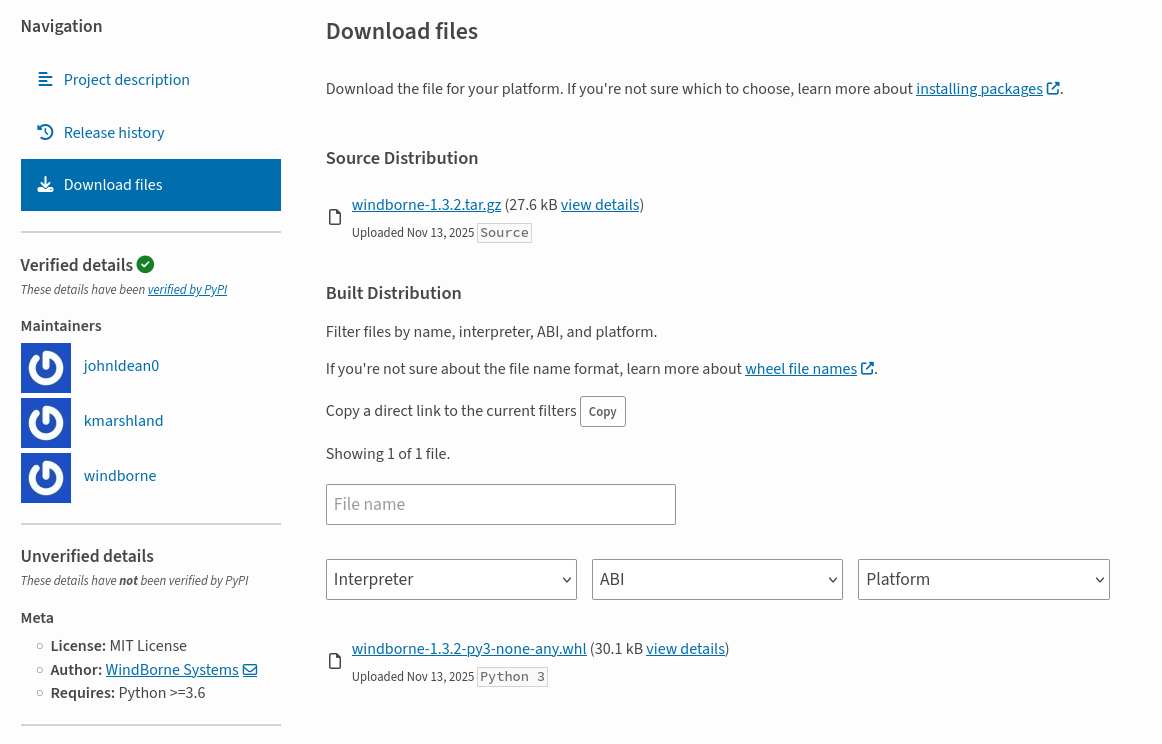
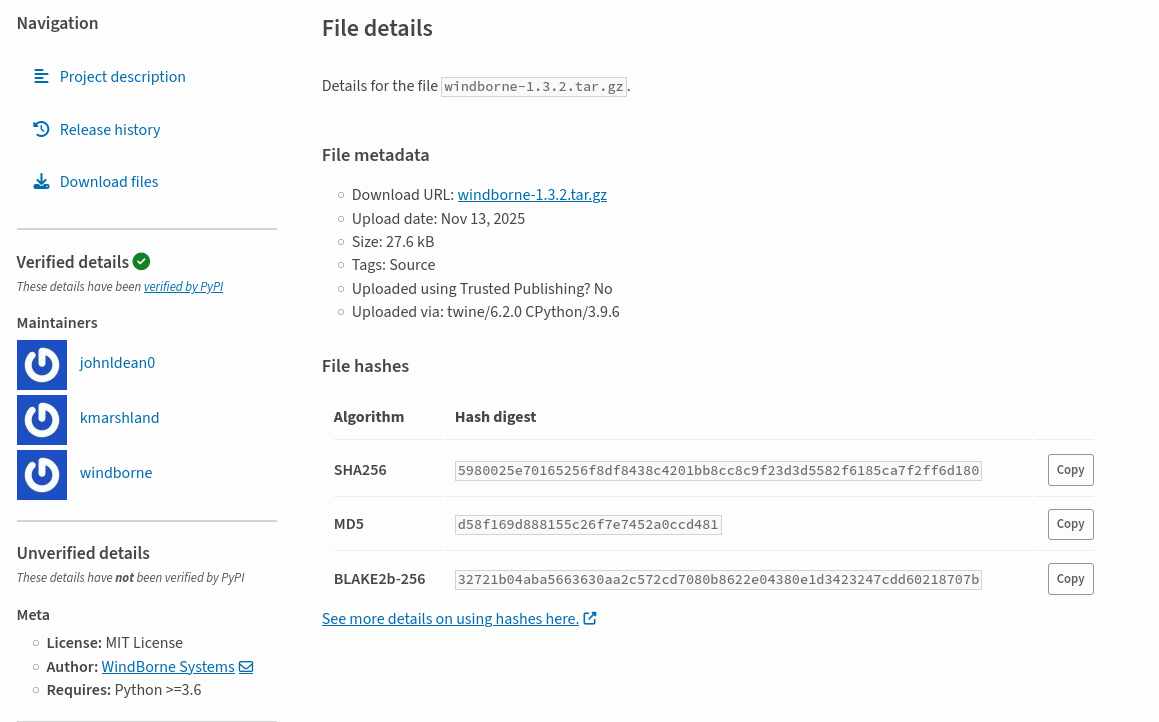
This one is super important! SHA256 verifies that the file you’re downloading is authentic and hasn’t been tampered with. You can usually get this from the Python package page by clicking “Download files” → “View details.”
Uploading
Before uploading, it’s important to test your package locally. Running makepkg -si in your package directory builds and installs it, allowing you to verify that everything works.
You’ll need an AUR account to upload packages, but that process is straightforward so I won’t go into detail here.
Once you’re confident, uploading to the AUR is straightforward. Using git, you clone your package repository from AUR, copy in your PKGBUILD. You would need to runmakepkg --printsrcinfo > .SRCINFO to generate .SRCINFO tells AUR the information about the package.
Once uploaded, your package is ready to be installed with your favorite AUR helpers. (paru is better than yay imo).
Ok but why tho...
You’re not just making your own life easier—you’re helping the entire Arch community avoid the headaches of manually installing packages with pip. Every contribution strengthens the open-source ecosystem, one package at a time.
Plus, packaging teaches you a lot about dependencies, versioning, and system maintenance. And the best part? Every time someone installs your package, you’ve just made their Linux journey a little smoother—and that’s a truly rewarding feeling.